Install your Callout theme
Step by step, for the plumber, HVAC, electrician, roofing, tree service and pest control themes. No coding needed.
This guide takes you from the zip in your order email to a live website that emails you new leads. It covers all six Callout themes (plumber, HVAC, electrician, roofing, tree service and pest control). They are built the same way, so the steps are the same.
You don't need to be a developer. You will copy and paste a few commands, click through the Cloudflare dashboard, and fill in your business details in your site's admin. Plan on about an hour the first time.
Before you start#
What you need
- The zip file from your order email (the download link always gives you the latest version).
- A Windows 10 or 11 PC, or a Mac.
- A Cloudflare account. Signing up is free.
- A domain name, such as
yourbusiness.com. You can start without one and add it later, but you need one for lead emails.
What it costs
- The theme has no monthly fees.
- Cloudflare's Workers Paid plan is US$5 a month. We recommend it once real customers use the site (see 4.3). Lead emails can be free (step 6, Way A).
- Your domain name, from whoever you bought it from (usually US$10 to US$20 a year).
Two ways to do it
- Do it yourself. Follow steps 1 to 7 in order. Every click and command is here.
- Let an AI assistant do it. Claude Code or OpenAI Codex can run the commands for you. You still create the Cloudflare account and a key for it. See step 8.
The steps
- Install the tools (Node.js and pnpm)
- Unzip the theme
- Look at it on your computer (optional)
- Put it on Cloudflare
- Make it yours in the admin
- Get leads by email
- A business email address on your domain (optional)
- Let an AI assistant do the setup
- Updating the theme later
- If something goes wrong
1. Install the tools#
Your site is built with two free tools: Node.js runs it and pnpm installs its parts. You install them once.
Install Node.js#
- Go to nodejs.org and download the LTS version.
- Open the file you downloaded. On Windows it's an
.msifile, on a Mac a.pkgfile. - Click through the installer and keep the default settings.
Open a terminal#
A terminal is a window where you type commands.
- Windows: click Start, type
PowerShell, and open Windows PowerShell (or Terminal). - Mac: press Cmd and Space, type
Terminal, and press Return.
Type this and press Enter (Return on a Mac):
node -vYou should see a version number such as v24.11.1. It must start with 22 or higher. If it says the command is not found, close the terminal, open a new one and try again.
Install pnpm#
npm install -g pnpmThen check it worked:
pnpm -vYou should see a version number.
If Windows says "running scripts is disabled on this system": run the command below, type Y and press Enter, then run npm install -g pnpm again. It lets your Windows user run the signed scripts that npm and pnpm use.
Set-ExecutionPolicy -Scope CurrentUser RemoteSignedIf a Mac says "permission denied" (EACCES): run it with sudo and type your Mac password when asked.
sudo npm install -g pnpm2. Unzip the theme#
Windows: make a folder with a short name, such as C:\Sites. Right-click the zip, choose Extract All, and extract it into C:\Sites. You get a folder such as C:\Sites\callout-plumber.
Keep the folder name short. Windows can't start the local preview if the full path to the files is longer than 260 characters, and folders deep inside Downloads or OneDrive can go over that.
Mac: double-click the zip in Downloads. Move the folder it makes into a Sites folder in your home folder, so you have ~/Sites/callout-plumber.
Now open a terminal in that folder.
- Windows 11: open the folder in File Explorer, right-click an empty spot and choose Open in Terminal. Or type the command below.
- Mac: type the command below.
cd C:\Sites\callout-plumbercd ~/Sites/callout-plumberUse your own folder name if it's different (for example callout-hvac). Then install the theme's parts:
pnpm installYou should see a list of packages and then Done in .... It takes one to three minutes.
3. Look at it on your computer (optional)#
You can skip this step. It lets you look around before going live.
pnpm devThe first start takes a minute or two. When you see ready in, open http://localhost:4321/_emdash/admin in your browser. The setup has three short screens:
- Site: type your business name as the Site Title and a short Tagline. Under How do you want to start? leave Sample content selected. Click Continue.
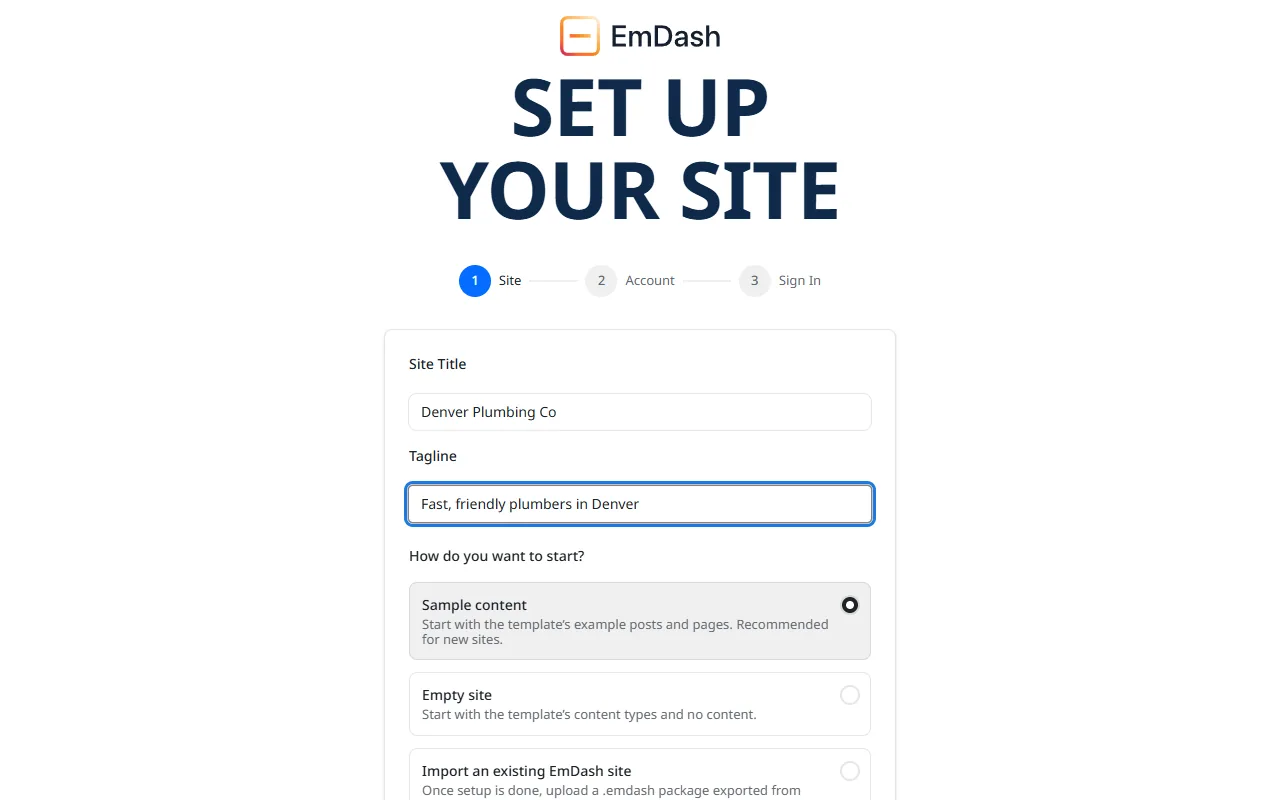
- Account: type your email and name. Click Continue.
- Sign In: click Create passkey. Your computer asks you to confirm with Windows Hello, Touch ID, your PIN or your phone. That's your login from now on: no password to remember.
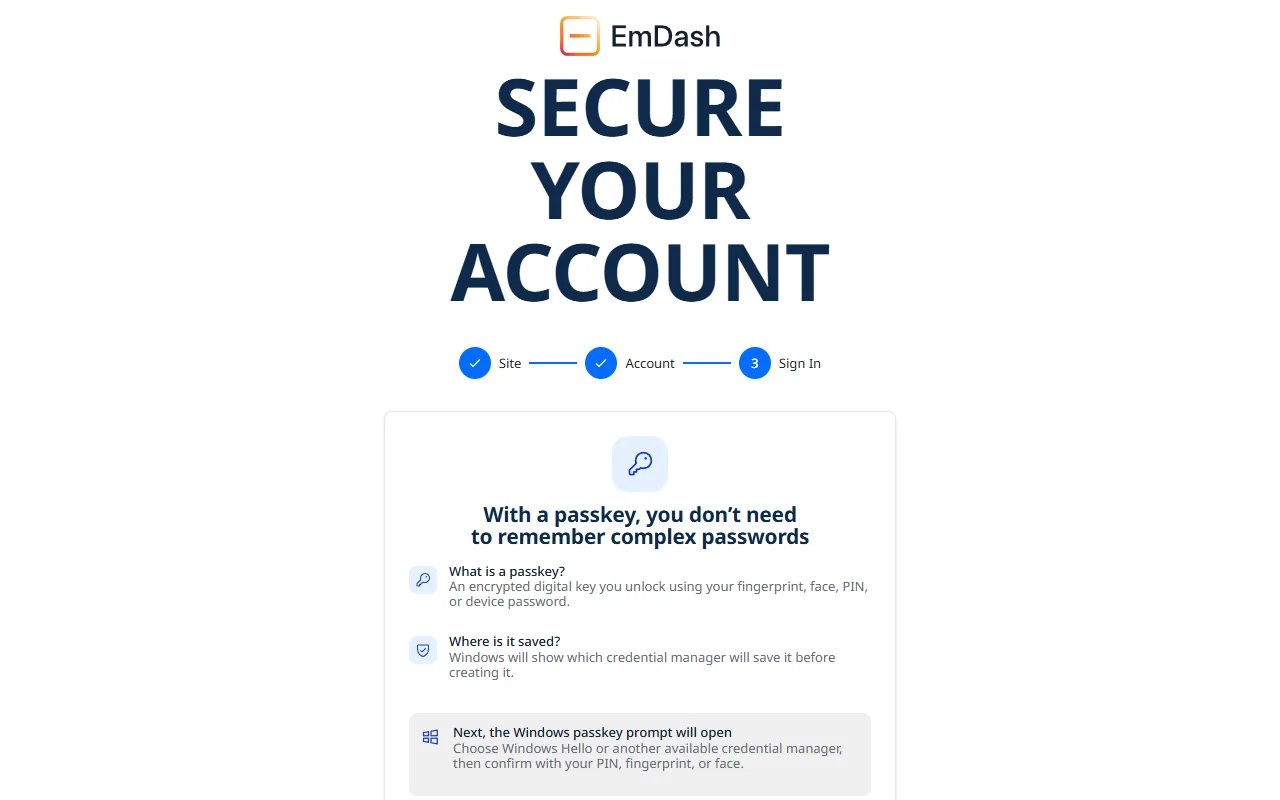
Your sample site is at http://localhost:4321.
Good to know: this copy runs only on your computer and has its own database. Nothing you type here goes to your live site. Look around, then do your real editing on the live site (step 5).
To stop it, click in the terminal and press Ctrl and C.
4. Put it on Cloudflare#
Cloudflare hosts your site. You need a Cloudflare account with two things switched on, then one command does the rest.
4.1 Create a Cloudflare account#
Go to dash.cloudflare.com/sign-up, sign up, and confirm your email address.
4.2 Turn on R2 storage#
R2 is where your uploaded photos are stored. It's free for the first 10 GB, which is plenty for a business site.
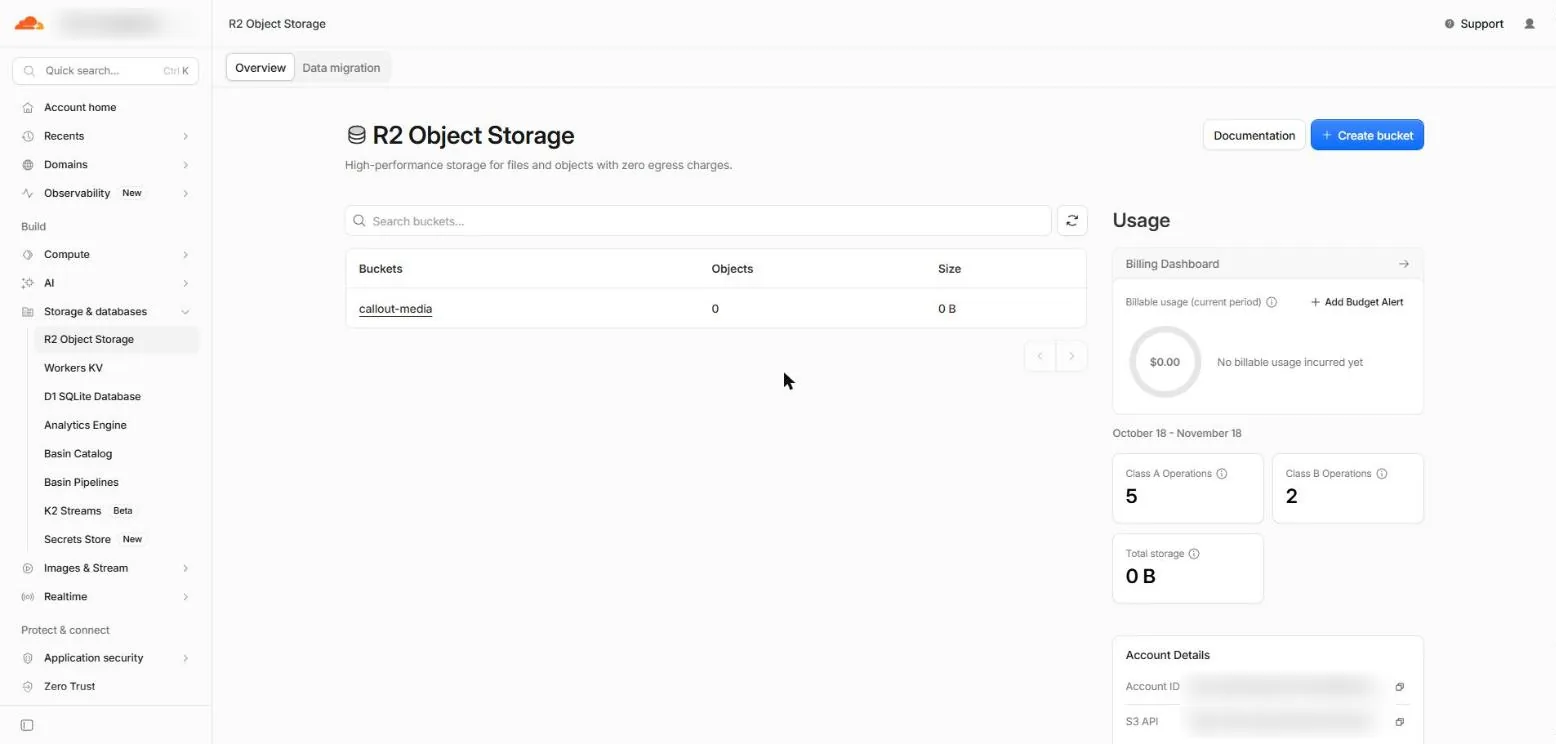
- In the Cloudflare dashboard, open Storage & databases, then R2 Object Storage in the left menu.
- Follow the steps to turn it on. Cloudflare may ask for a card even though you stay inside the free allowance.
Once it's on, the R2 page looks like this. The bucket list is empty until pnpm go-live creates yours (here, callout-media).
4.3 Upgrade to Workers Paid#
In the dashboard, open Compute, then Workers plans, and click Upgrade under Paid (US$5 a month). Lead emails need it only if you choose Way B in step 6.
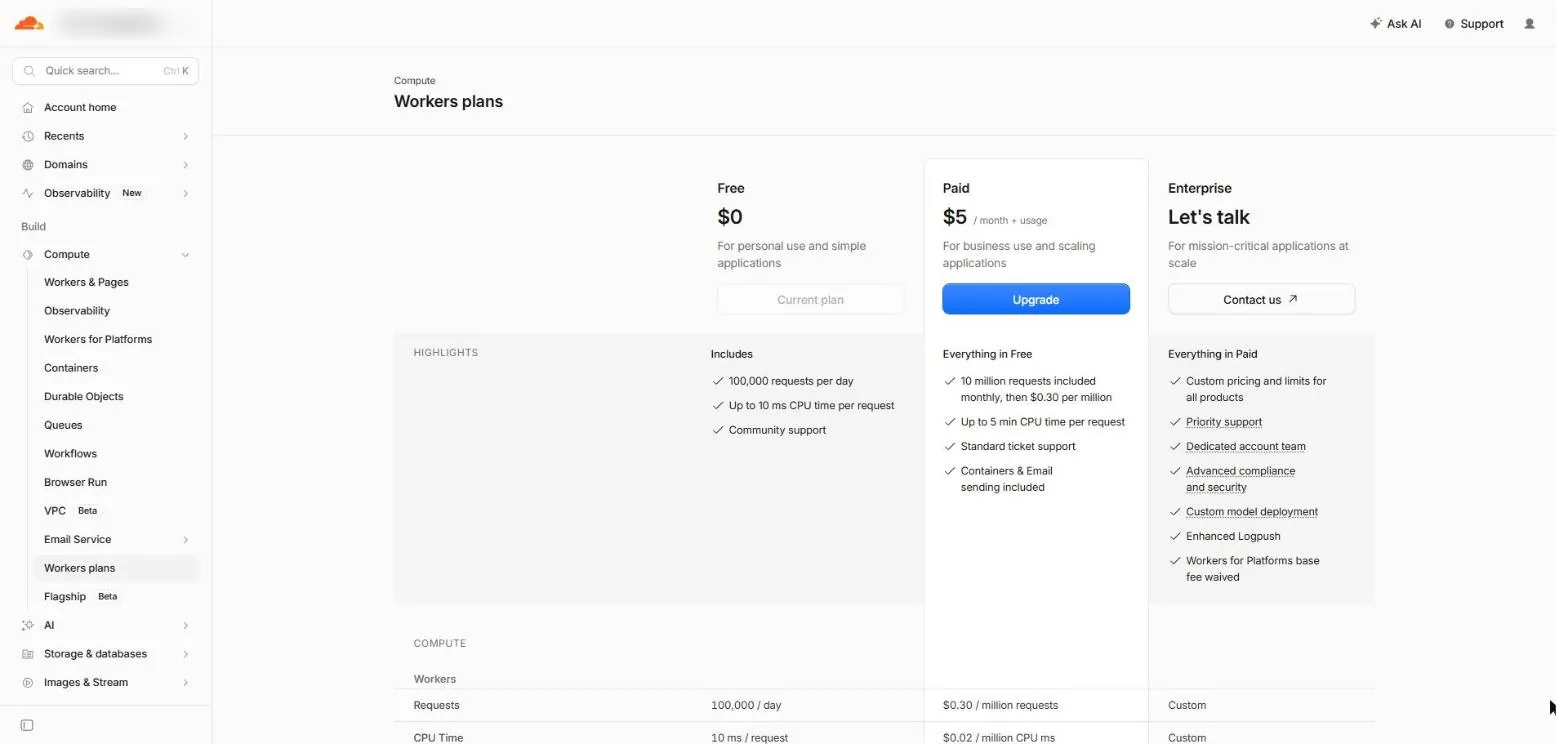
You can try the site on the free plan first. In our test on a free account, every page loaded. But most pages use more computing time than the free plan allows for each visit (10 ms), and Cloudflare can start refusing visits that go over it. Before you send customers to the site, switch to Workers Paid so it stays up.
4.4 Log in from the terminal#
In the terminal, in your theme folder:
npx wrangler loginYour browser opens a Cloudflare page. Click Allow. Back in the terminal you should see Successfully logged in.
4.5 Choose your project name (optional)#
Your site's first address looks like https://callout.your-name.workers.dev. To use your own word instead of callout, open wrangler.jsonc in the theme folder with Notepad (Windows) or TextEdit (Mac) and change this line:
"name": "callout",Use lowercase letters, numbers and hyphens, for example "name": "smith-plumbing",. Save the file. Do this before the next step; changing it later makes a second copy of the site.
4.6 Go live with one command#
pnpm go-liveIt does six things and tells you as it goes:
- Checks you're logged in to Cloudflare.
- Creates your database and saves its ID in
wrangler.jsonc. - Creates the storage bucket for uploads.
- Builds the site.
- Sets up the database tables.
- Puts the site on Cloudflare.
It takes two to five minutes. At the end you should see your site's address, a line that starts with https:// and ends in .workers.dev. Copy it.
If Cloudflare asks you to choose a workers.dev subdomain, type a short name such as your business name. It's part of your free address.
If it stops, read the message: it says what to fix. Then run pnpm go-live again. It skips anything already done, so running it twice is safe.
4.7 Finish the setup on your live site#
Open your address with /_emdash/admin on the end, for example https://callout.your-name.workers.dev/_emdash/admin. You see the same three setup screens as in step 3. Pick Sample content so every page starts with text you can edit, then create your account with a passkey. This is your real admin login.
4.8 Create the forms#
Your site has three forms: a free estimate form, a contact form and a short quote form at the top of the home and service pages. A command creates them. It needs a key from your site's admin, called an API token.
- In the admin, open Settings, then API Tokens, then Create New Token.
- Give it a name such as
setup. Under Scopes, tick Admin. Leave Expiry at 30 days. - Click Create Token and copy the token. It starts with
ec_pat_. It's shown only once.
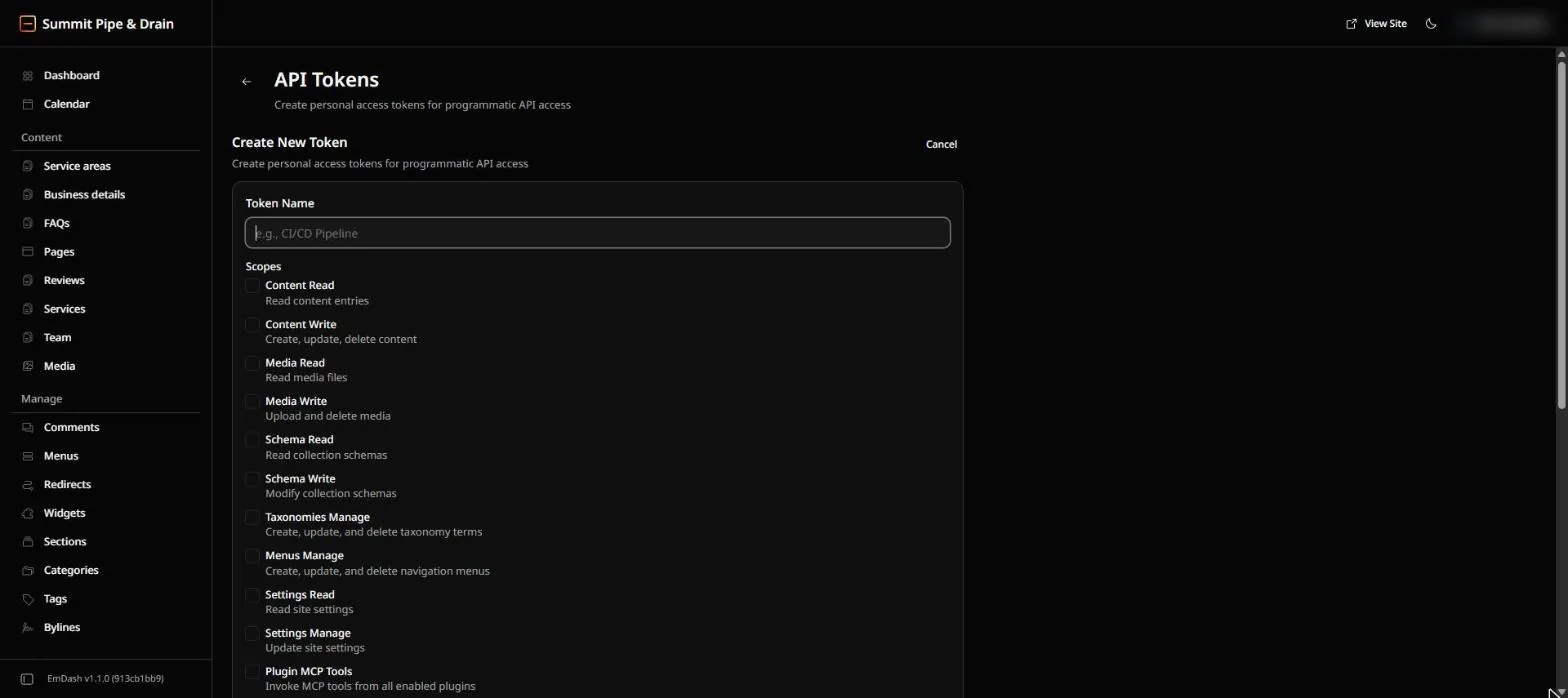
Now run these in the terminal. Paste your token and your site's address in place of the examples.
$env:EMDASH_TOKEN = "ec_pat_paste_your_token_here"
pnpm forms https://callout.your-name.workers.devexport EMDASH_TOKEN=ec_pat_paste_your_token_here
pnpm forms https://callout.your-name.workers.devYou should see created estimate, created contact and created quote. Keep this terminal open: step 6 uses the token once more. Until the quote form exists, the box at the top of the home page shows your phone number instead.
4.9 Use your own domain#
Your domain needs to be on Cloudflare first.
- Bought it from Cloudflare? It's already there.
- Bought it somewhere else (GoDaddy, Namecheap, Squarespace and so on)? In the Cloudflare dashboard click Add a domain, type it, choose the Free plan, and follow the steps. Cloudflare copies your existing DNS records, then asks you to change two "nameservers" at the company you bought it from. Check that your email records (the ones marked MX) were copied before you switch, so your email keeps working. The switch can take up to a day.
Then attach it to your site:
- In the dashboard, open Compute, then Workers & Pages, and click your project (
calloutor the name you chose). - Open the Domains tab, then click Add Domain.
- Type your domain, for example
yourbusiness.com, and add it. Do it again forwww.yourbusiness.comif you want that to work too.
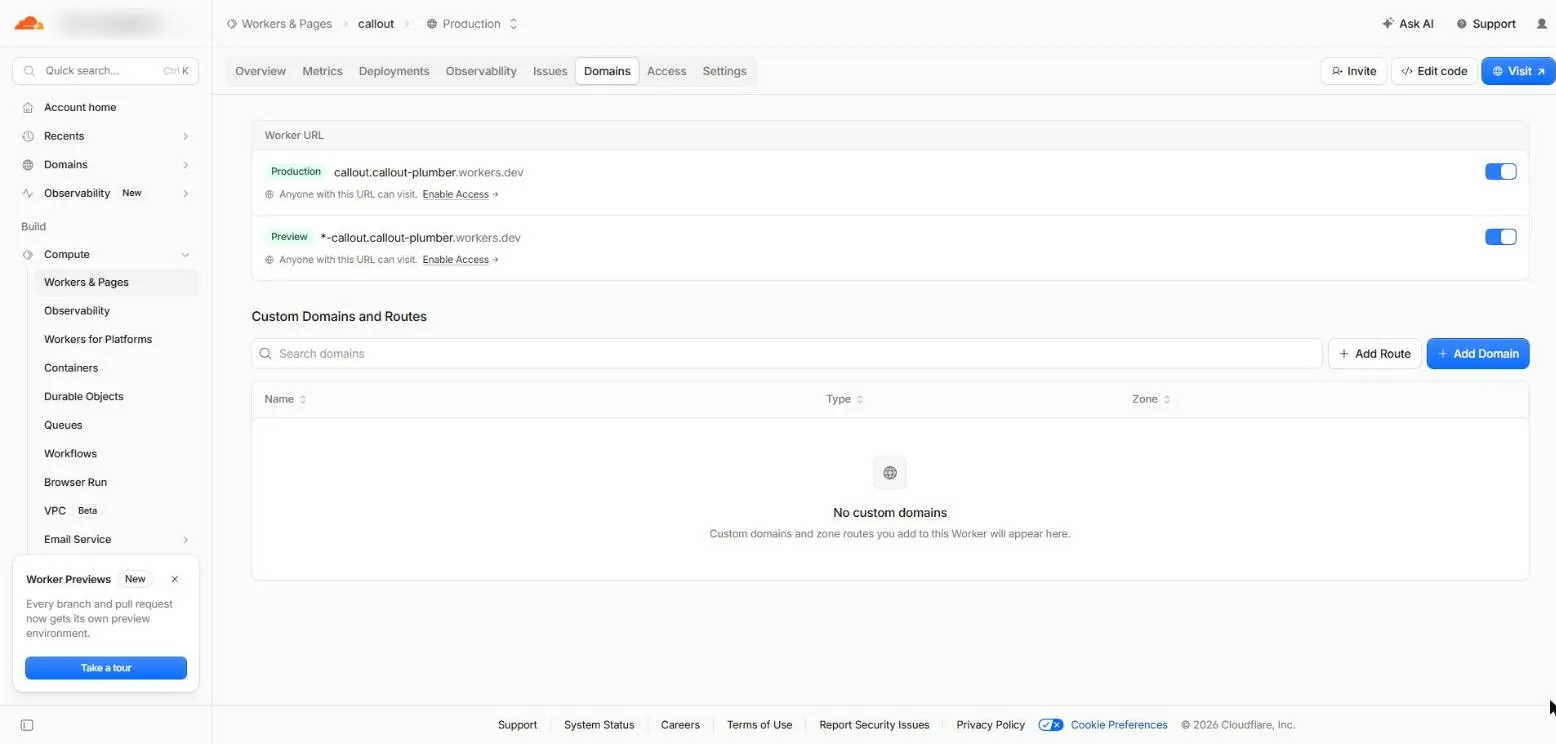
After a few minutes your site opens at your domain. Then update two things in the admin:
- Settings, then General, then Site URL: change it to
https://yourbusiness.comand save. - Forms: open each form, then its settings, and change the Redirect URL to
https://yourbusiness.com/thank-you. This is the page people see after they send a form.
5. Make it yours in the admin#
Everything in this step happens in your site's admin at yourbusiness.com/_emdash/admin. Most screens have a Publish button at the top right. "Saved" means your change is stored; Publish puts it on the live site.
Business details (do this first)#
Open Business details in the left menu, then the one entry in the list. This one entry fills the header, footer, call buttons, the trust bar and the hidden information search engines read, on every page.
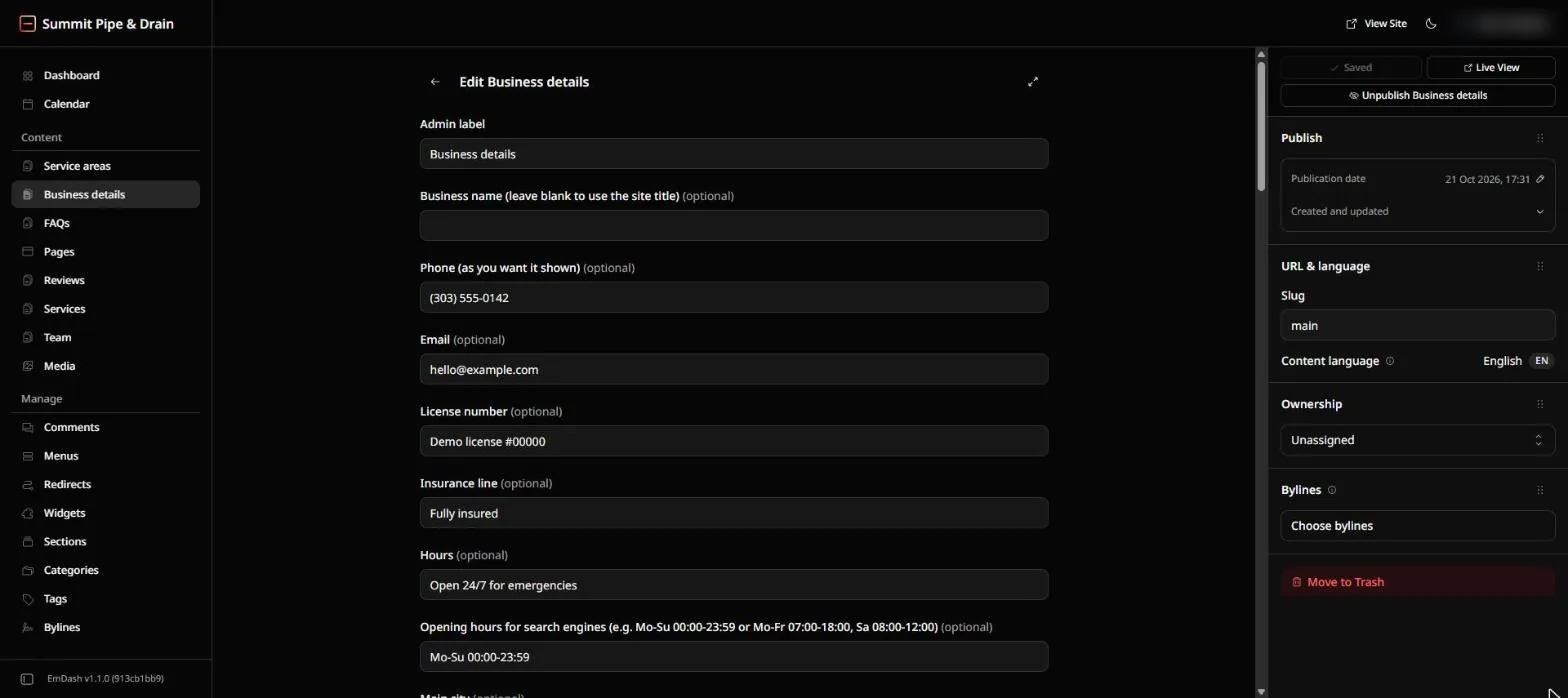
Field | What to put |
|---|---|
Business name | Your business name. Leave it blank to use the Site Title. |
Phone | As you want it shown, like |
Your business email. | |
License number | Your license number, if your trade needs one. |
Insurance line | For example |
Hours | The hours people read, like |
Opening hours for search engines | Your hours in the format Google reads (see below). |
Main city, State, Region name | Like |
Street address | Optional. Leave it blank if customers don't visit you. |
Google Business Profile link, Leave-a-review link | Used for the review button and by search engines. |
Years in business | For example |
Guarantee line, Financing line | Short lines shown on the site. Only promise what you really offer. |
Trust bar items | The short points under the home page banner, such as "Upfront prices". |
Track record rows | The proof points on the home page. |
Primary colour, Accent colour, Call button colour | Colours as hex codes like |
Fonts | Pick one of three font pairs. |
Opening hours format. Use two-letter days (Mo Tu We Th Fr Sa Su) and 24-hour times. Put a comma between groups. For example:
Mo-Su 00:00-23:59means open every day, all day.Mo-Fr 07:00-18:00, Sa 08:00-12:00means weekdays plus Saturday morning.Mo,We,Fr 08:00-17:00means three separate days.
Anything not in this format is ignored, so check it after you save. The plain Hours field is for people; this one is for Google.
Click Publish when you're done.
Logo, favicon, site title and tagline#
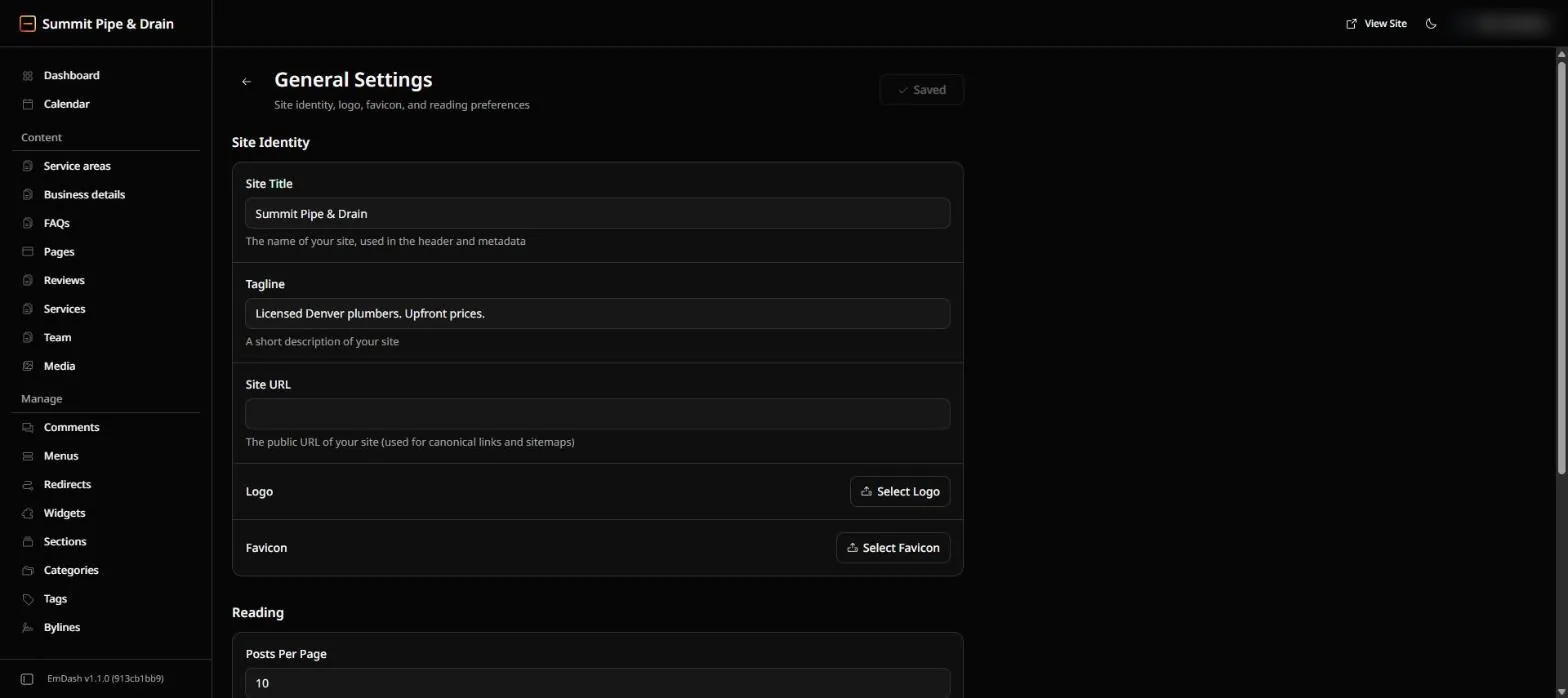
Open Settings, then General.
- Site Title and Tagline: your business name and a short line about what you do.
- Site URL: your site's address (see 4.9).
- Logo: click Select Logo and upload it. A wide PNG or SVG with a see-through background looks best.
- Favicon: the small icon in the browser tab. Upload a square PNG, 512 by 512 pixels.
Placeholders#
Much of the sample text uses placeholders, so it changes when you fill in Business details. You can type them in your own text too.
Placeholder | Becomes |
|---|---|
| Business name |
| Main city |
| State |
| Region name |
| Phone |
| The town, on a service area page |
A placeholder the theme doesn't know stays as you typed it.
Services#
Open Services. Click a service to edit it, Add New to add one, or Move to Trash (at the bottom of the right-hand panel) to delete one.
- Service name, Short intro and Main text: the page's heading and words.
- Photo: see "Photos" below.
- What's included, Cost guide rows and Process steps: lists you can add to, edit or remove. Check the cost guide. The sample prices are examples for Denver and may not suit your area or your business.
- Sort order: lower numbers show first.
- Slug (under URL & language in the right-hand panel): the end of the page address, such as
drain-cleaning.
Service areas#
Open Service areas and replace the sample towns with yours: Town, State, County, Intro, Local notes and an optional Photo. Towns in the same county show up as nearby areas on each other's pages.
Reviews#
The sample reviews are made up. They're marked as samples, and they are hidden on your live site automatically. Until you add real reviews, the reviews page says "Reviews coming soon".
Open Reviews, then Add New. Fill in the Reviewer name, Town, Stars (1-5), Review text and Source (Google, Yelp and so on). Leave Sample review unticked. Only add reviews real customers gave you, with their permission. You can delete the samples.
Team#
The four sample team members are fictional and also hidden on your live site. Until you add your own, the Meet the team page says "Team profiles coming soon".
Open Team, then Add New: Name, Role, Short bio and Photo. To reuse a sample entry, edit it and untick Sample team member. You can delete the rest.
FAQs#
Open FAQs and edit the answers so they're true for your business. Each question can show on a service page (type that service's slug), on the home page, on the FAQ page, or on all three.
Pages#
Open Pages for the home page, About, Careers, Privacy Policy, Terms of Service and Accessibility Statement. Each has a Heading, an optional small line above it, an Intro and the main text.
The Privacy Policy, Terms and Accessibility pages are samples, not legal advice. Have them checked for your business.
Check the promises in the sample text#
The sample text makes promises for the demo business, such as response times or free estimates. Read every page once and change anything that isn't true for you. The README.md file in your download lists the ones to check for your trade, and which page each is on.
Photos#
The home page banner. Open Business details and find Hero image. Pick one of the four photos that come with your theme (Photo 1 is the default), or pick My own photo and upload yours in the field below it, Your own hero photo. Save, and the banner at the top of the home page changes. Use a landscape photo at least 1600 pixels wide; the left side sits under the heading, so a photo with the action on the right works best. If you pick My own photo without uploading one, the site shows Photo 1.
Photos you change in the admin. Each service, service area and team member has a Photo field. Click Select image and upload a photo. Until you do, the theme shows its own photo.
- Services and service areas: landscape, 1344 by 768 pixels (or the same shape, a bit wider than it is tall).
- Team members: square, at least 480 by 480 pixels.
- JPG, PNG or WebP all work. Keep each photo under about 500 KB so pages load fast.
Photos that are files in the theme. The other large photos on the home page (the "about" photo and two others) and the fallback photos for areas and the team page are files in the public/images folder. To change one:
- Make your photo 1344 by 768 pixels (the team photo is 1024 by 1024) and save it as a WebP file. The free website squoosh.app can do both.
- Save a second copy 768 pixels wide with
-768on the end of the name. - Replace the files with the same names, for example
about.webpandabout-768.webpfor the "about" photo. - Run
pnpm go-liveagain to put the change live.
File | Where it shows |
|---|---|
| Photos 1 to 4 for the home page banner (pick one under Hero image) |
| Next to the "about" text on the home page |
| Photo strips on the home, area and service pages |
| Service area pages without their own photo |
| Team members without their own photo |
About the bundled photos: you may use them on websites built with the theme, but not sell them or share them on their own (see LICENSE.md).
The few things that are in the theme's files (optional)#
Most text is in the admin. A few headings and button labels are part of the theme's files. Change them only if you're comfortable editing files, and run pnpm go-live afterwards.
- Trade headings such as "Reviews from {region} customers" and the intro above the estimate form:
src/generated/preset.json(thelabelssection). Keep the{placeholders}. - Buttons such as "Free estimate": the files in
src/components/(Header.astro,Hero.astro,CtaBand.astro,CallCard.astro,Footer.astro,CallBar.astro). If you don't offer free estimates, change every one. - Section headings such as "Why choose us": the files in
src/pages/andsrc/views/.
Page addresses#
Services, service areas and pages all live at /their-slug, such as /drain-cleaning or /about. So:
- Each slug must be different from every other service, area and page.
- Use lowercase letters, numbers and hyphens.
- These are taken by the theme:
services,service-areas,estimate,contact,thank-you,reviews,meet-the-team,faq,_emdash,images,api.
6. Get leads by email#
Every form someone sends is saved in the admin under Forms, then Submissions, even before you set up email. This step makes the site also email each one to you.
You need your domain on Cloudflare (4.9). Then pick one of two ways:
Way A: Email Routing | Way B: Email Sending | |
|---|---|---|
Cost | Free, on any plan | Needs Workers Paid (US$5 a month, 3,000 emails included) |
Lead emails can go to | Only inboxes you verify with Cloudflare (your own) | Any address |
Your domain's other email | Cloudflare takes over incoming email for your domain | Untouched |
Use it when | Your business email is Gmail, Outlook.com or similar, or you have no email on your domain | Your domain's email runs on Google Workspace, Microsoft 365 or another email host |
Not sure? If you read your business email at gmail.com or outlook.com, pick Way A.
6.1 Way A: set up Email Routing (free)#
- In the Cloudflare dashboard, click your domain, then Email, then Email Routing, then Get started.
- Add the inbox where you want lead emails, such as your Gmail address, as a destination address.
- Cloudflare emails that inbox. Click Verify email address in that email. Lead emails can't reach it until you do.
- Click Add records and enable, so Cloudflare adds the email records to your domain.
Your sending address is any address on your domain, such as leads@yourbusiness.com. You don't have to create it.
Lead emails go only to inboxes you've verified in step 3. To send them to a second person, add and verify their address too.
6.1 Way B: set up Cloudflare Email Sending (Workers Paid)#
Your site sends from an address on a subdomain such as mail.yourbusiness.com. Using a subdomain leaves the email you already use (Google Workspace, Microsoft 365 and so on) untouched.
- Upgrade to Workers Paid (4.3).
- In the Cloudflare dashboard, open Compute, then Email Service, then Email Sending.
- Click Onboard Domain, choose your domain and type
mailas the subdomain. - Cloudflare adds the DNS records it needs. Wait until the domain shows as verified, usually 5 to 15 minutes.
Your sending address is on that subdomain, such as leads@mail.yourbusiness.com.
6.2 Tell the site which address to send from#
Open astro.config.mjs in the theme folder with Notepad or TextEdit. Near the top, find this line:
const EMAIL_FROM = "";Put your sending address from 6.1 between the quotes, then save the file. For Way A:
const EMAIL_FROM = "leads@yourbusiness.com";For Way B:
const EMAIL_FROM = "leads@mail.yourbusiness.com";Then put the change live:
pnpm go-live6.3 Send a test email#
In the admin, open Settings, then Email. Provider should say cloudflare-email. Type your own email address under Send Test Email and click Send Test. Check your inbox, and your spam folder the first time.
6.4 Choose who gets the lead emails#
The Forms screen has no box for this, so a command sets it for all three forms. In the same terminal as 4.8 (or set the token again if you closed it):
pnpm lead-email https://yourbusiness.com you@yourbusiness.comAdd more addresses with a space between them. You should see one line per form, such as quote: emails go to you@yourbusiness.com. With Way A, use only addresses you verified in 6.1.
6.5 Test every form#
Open your site in a private browser window and send the quote form, the estimate form and the contact form. Each one should arrive in your inbox within a minute, with the subject "New submission".
Keep the daily digest off. If you turn on the daily summary in a form's settings, the forms stop sending emails at all (a known bug in the forms plugin).
6.6 Stronger spam protection (optional)#
The forms start with a hidden trap that catches most spam robots. For more protection, use Cloudflare Turnstile, a free check that most people never notice:
- In the Cloudflare dashboard, open Turnstile and click Add widget. Give it a name, add your domain, and keep the Managed mode.
- Copy the Site Key and Secret Key.
- In your admin, open the Forms settings, paste both keys and save.
- Open each form, then its settings, and set Spam protection to Turnstile.
6.7 Delete the setup token#
You don't need the API token any more. In the admin, open Settings, then API Tokens, and delete it. Make a new one if you ever need to run a command again.
7. A business email address on your domain (optional)#
Cloudflare Email Routing can forward an address such as quotes@yourbusiness.com to the inbox you already use, for free. If you chose Way A in step 6, Email Routing is already on: start at step 2 below.
Don't use it if you already get email at your domain through Google Workspace, Microsoft 365 or another email host. Email Routing takes over your domain's incoming mail and would stop that email arriving.
- In the Cloudflare dashboard, click your domain, then Email, then Email Routing, then Get started.
- Type the address you want, such as
quotes, and the inbox it should go to, such as your Gmail address. - Cloudflare emails that inbox. Click Verify email address in that email. The forwarding stays off until you do.
- Click Add records and enable so Cloudflare adds the email records to your domain.
- Wait 5 to 15 minutes, then send a test email to the new address. If you get "550 Address does not exist", it hasn't switched on yet: wait a few more minutes and try again.
Email Routing only receives. Your replies come from your normal email address.
8. Let an AI assistant do the setup#
An AI coding assistant can run the commands in step 4 for you and fix most problems on its own. It needs to run commands on your computer, so use one of these:
- Claude Code, in the Code tab of the Claude desktop app, or in a terminal.
- OpenAI Codex, in the Codex app or in a terminal.
A normal chat window, such as claude.ai or chatgpt.com in a browser, can't run commands on your computer. It can explain the steps while you follow steps 1 to 7 yourself.
You still do these yourself: create the Cloudflare account, turn on R2 and Workers Paid (4.2 and 4.3), create the Cloudflare API token below, create your site login with a passkey, create the site's API token, and set up Email Sending (6.1).
8.1 Create a Cloudflare API token#
The token is a key that lets the assistant work in your Cloudflare account. It gets only the permissions listed here.
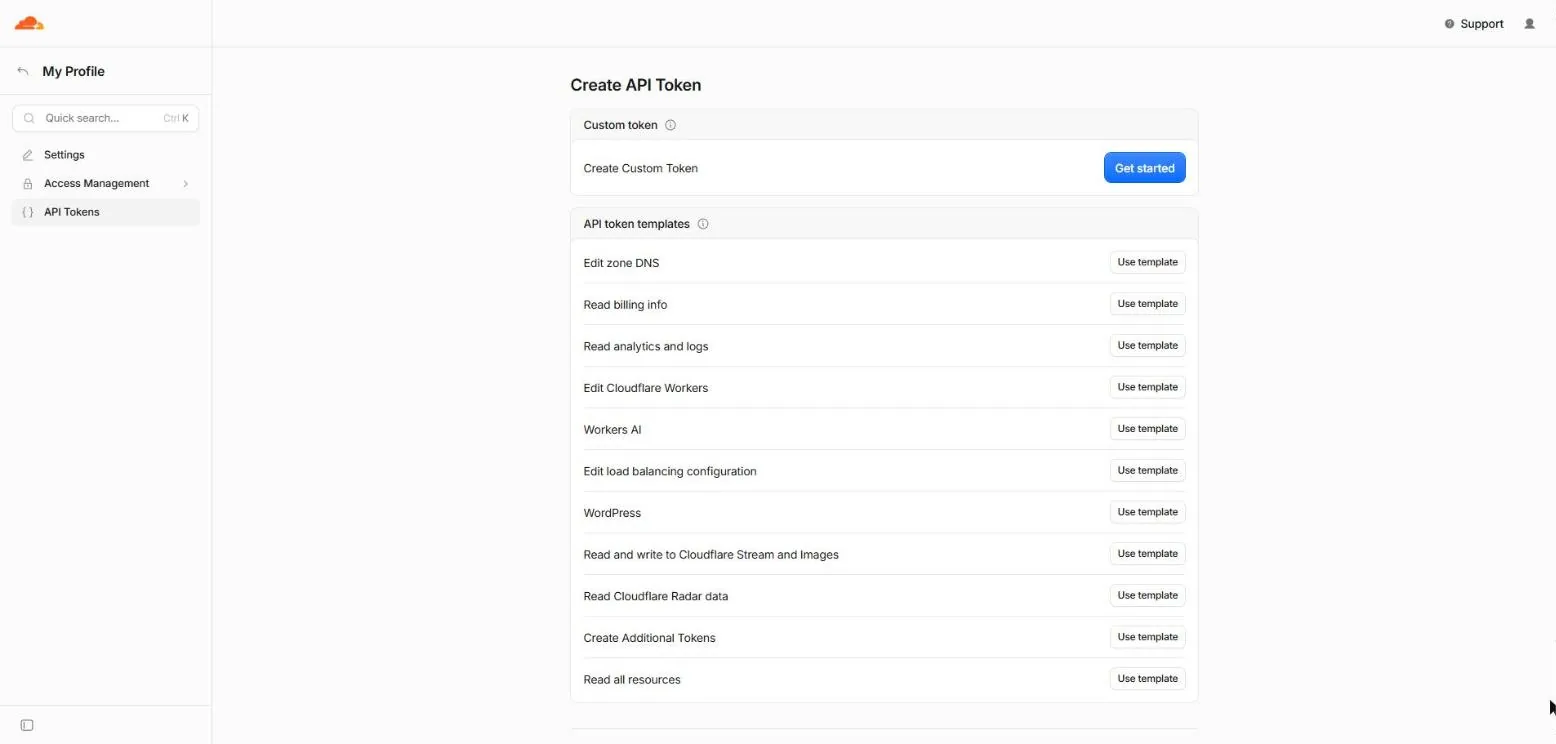
- In the Cloudflare dashboard, click the person icon at the top right, then My Profile, then API Tokens.
- Click Create Token. Next to Edit Cloudflare Workers, click Use template.
- The template already has most of what's needed. Click + Add more and add the rows marked "No: add it" in the table below. For each row, pick the type on the left first (Account or Zone), then the permission, then Edit or Read.
- Under Account Resources, choose Include and your account.
- Under Zone Resources, choose Include, then Specific zone, then your domain. (No domain yet? Leave the zone rows out and add your domain yourself later, as in 4.9.)
- Under TTL, set an end date a week from today, so the token stops working on its own.
- Click Continue to summary, then Create Token. Copy the token. It's shown only once.
Type | Permission | Access | What it's for | In the template? |
|---|---|---|---|---|
Account | Workers Scripts | Edit | Putting the site live | Yes |
Account | Workers KV Storage | Edit | Visitor sessions | Yes |
Account | Workers R2 Storage | Edit | The photo storage bucket | Yes |
Account | Account Settings | Read | Finding your account | Yes |
Account | Workers Tail | Read | Reading error logs | Yes |
Zone | Workers Routes | Edit | Attaching your domain | Yes |
User | User Details, Memberships | Read | Showing who's logged in | Yes |
Account | D1 | Edit | Creating and setting up the database | No: add it |
Zone | Zone | Read | Looking up your domain | No: add it |
Zone | Zone Settings | Edit | Switching on Email Routing (6, Way A, and step 7) | No: add it for Way A or step 7 |
Zone | Email Routing Rules | Edit | Creating the forwarding address (step 7) | No: add it for step 7 |
Account | Email Routing Addresses | Edit | Adding your verified inbox (6, Way A, and step 7) | No: add it for Way A or step 7 |
Account | Turnstile | Edit | Spam protection (6.6) | No: add it for 6.6 |
When the setup is done, delete the token: My Profile, then API Tokens, then the menu next to it, then Delete.
8.2 Give the assistant this prompt#
Do steps 1 and 2 first (install the tools and unzip the theme). Open the assistant in your theme folder: in Claude Code or Codex, choose the folder when it asks, or open a terminal in the folder and type claude or codex.
Copy the prompt below, fill in the four lines under "My details", and paste it in. When the assistant asks for your Cloudflare token, paste it into the assistant only, never anywhere public.
You are setting up a Callout website theme for me. Callout is an EmDash CMS theme (Astro) that runs on Cloudflare Workers. I am not a developer: before each step, tell me in one short sentence what you are about to do, and stop and ask me whenever you need something from me.

The theme is in this folder. The install guide is https://emdashthemes.dev/install/callout and the README.md in this folder. Follow them. Don't change the theme's code, except the lines this prompt names.

My details:
- Cloudflare account ID: <paste it from the Cloudflare dashboard, Account home, the three-dot menu next to your account>
- Project name (lowercase letters, numbers and hyphens): <for example smith-plumbing>
- My domain, already on Cloudflare (or "none yet"): <for example smithplumbing.com>
- Email address for new leads: <for example you@smithplumbing.com>

I will paste a Cloudflare API token when you ask. Keep it in environment variables for this session only (CLOUDFLARE_API_TOKEN, plus CLOUDFLARE_ACCOUNT_ID set to my account ID). Never write it into a file, never commit it, never print it back.

Do these in order, and check each one worked before moving on:
1. Check that Node.js is version 22 or newer and that pnpm is installed. Run pnpm install.
2. In wrangler.jsonc, set "name" to my project name.
3. Run npx wrangler whoami and check that it shows my account ID. Stop and tell me if it doesn't.
4. Run pnpm go-live. If it stops, read its message, fix the cause and run it again. Never delete a database or a bucket that has content in it.
5. Tell me the live address. Ask me to open that address with /_emdash/admin on the end and finish the setup myself (I pick Sample content and create my login with a passkey). Wait until I say it's done.
6. Ask me to create an API token in the site's admin (Settings, API Tokens, tick Admin) and paste it. Set it as EMDASH_TOKEN for the next commands only, then run: pnpm forms <live address>, and pnpm lead-email <live address> <my lead email>.
7. If I gave a domain: add "routes": [{ "pattern": "<my domain>", "custom_domain": true }] to wrangler.jsonc and run pnpm go-live again. Check that https://<my domain> opens the site. Then update each form's redirectUrl to https://<my domain>/thank-you with the forms plugin API (POST <site>/_emdash/api/plugins/emdash-forms/forms/list, then forms/update with { "id": ..., "settings": { "redirectUrl": ... } }, using the EMDASH_TOKEN as a Bearer token). Ask me to change Settings, General, Site URL to https://<my domain> in the admin.
8. Lead emails (guide step 6). Ask me which way I want. Way A (free, my business email is Gmail, Outlook.com or similar): turn on Email Routing for my domain with the Cloudflare API, add my lead email as a destination address, ask me to click the verify email Cloudflare sends, then set EMAIL_FROM in astro.config.mjs to leads@<my domain>. Way B (my domain's email runs on Google Workspace or Microsoft 365): ask me to upgrade to Workers Paid and set up Cloudflare Email Sending for mail.<my domain> in the dashboard, and when I say it's verified set EMAIL_FROM to leads@mail.<my domain>. Either way, run pnpm go-live, send one test lead through the quote form, and ask me to confirm it arrived.
9. Finish with a short list of what you did, the live address, and a reminder to delete both tokens: the Cloudflare API token and the site's admin API token.
The assistant may ask for permission before running each command. Read what it's about to do, and allow it if it matches the steps above.
9. Updating the theme later#
Your download link always gives you the latest version, and updates are free. Your words, photos, reviews and form submissions are stored in your Cloudflare database, not in the theme's files, so an update doesn't touch them.
- Download the new zip and unzip it into a new folder, such as
C:\Sites\callout-plumber-2. - Copy
wrangler.jsoncfrom your old folder into the new one. It holds your database ID and project name. - If you set
EMAIL_FROM(6.2), set it again in the newastro.config.mjs. - If you replaced photos in
public/imagesor changed files insrc, copy those changes across too. - In the new folder, run
pnpm install, thenpnpm go-live. It also adds any new database tables the update needs.
10. If something goes wrong#
"running scripts is disabled on this system" (Windows). See "Install pnpm" in step 1.
`pnpm dev` fails with `spawn ... workerd.exe ENOENT` (Windows). The folder path is too long. Move the theme folder somewhere short, such as C:\Sites, delete the node_modules folder inside it, and run pnpm install again.
`pnpm go-live` says you're not logged in. Run npx wrangler login and try again.
`pnpm go-live` says your login can see more than one account. It prints the account IDs. Pick yours and set it, then run pnpm go-live again:
$env:CLOUDFLARE_ACCOUNT_ID = "your-account-id"export CLOUDFLARE_ACCOUNT_ID=your-account-id`pnpm go-live` says R2 isn't turned on. Do step 4.2, then run it again.
The live site shows errors on its first visit, or a "migration lock". The database tables weren't fully set up. Run pnpm go-live again. If it still fails, email us (below) and include what the terminal shows.
`pnpm forms` or `pnpm lead-email` says `401`. The site's API token is missing, mistyped, expired or doesn't have the Admin scope. Make a new one (4.8) and set it again.
No lead emails arrive.
- Look in Forms, then Submissions. If the lead is there, the form works and only the email is the problem.
- Open Settings, then Email. If it says no provider is configured,
EMAIL_FROMis empty or you didn't runpnpm go-liveafter setting it (6.2). - Send a test from that screen and check your spam folder.
- Check that you ran
pnpm lead-email(6.4), and that the daily digest is off.
"550 Address does not exist" when emailing your new forwarding address. Wait 5 to 15 minutes after setting up Email Routing, then try again.
Still stuck? Email support@emdashthemes.dev from the address you bought with, and include your licence key (it's in your order email). Support for installing the theme is included for 12 months.